Kenerate AI
Back to library
Comparative Infographic Grid Generator Prompt (Legs and Stockings) 1Comparative Infographic Grid Generator Prompt (Legs and Stockings) 2Comparative Infographic Grid Generator Prompt (Legs and Stockings) 3
Image

Comparative Infographic Grid Generator Prompt (Legs and Stockings)

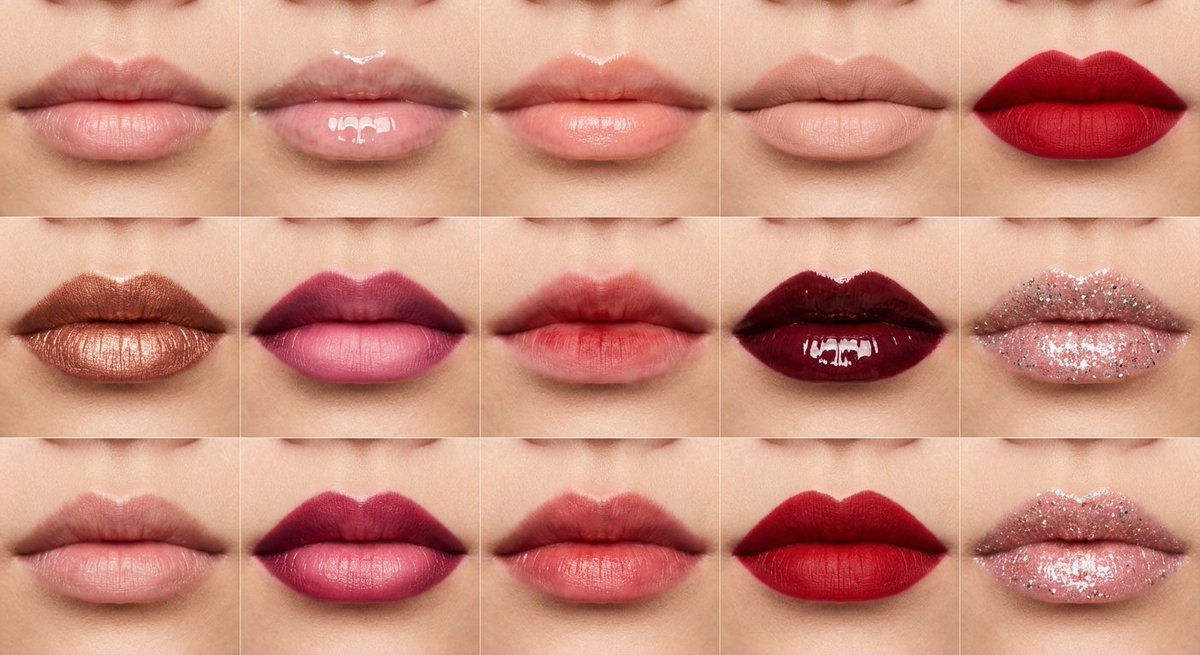
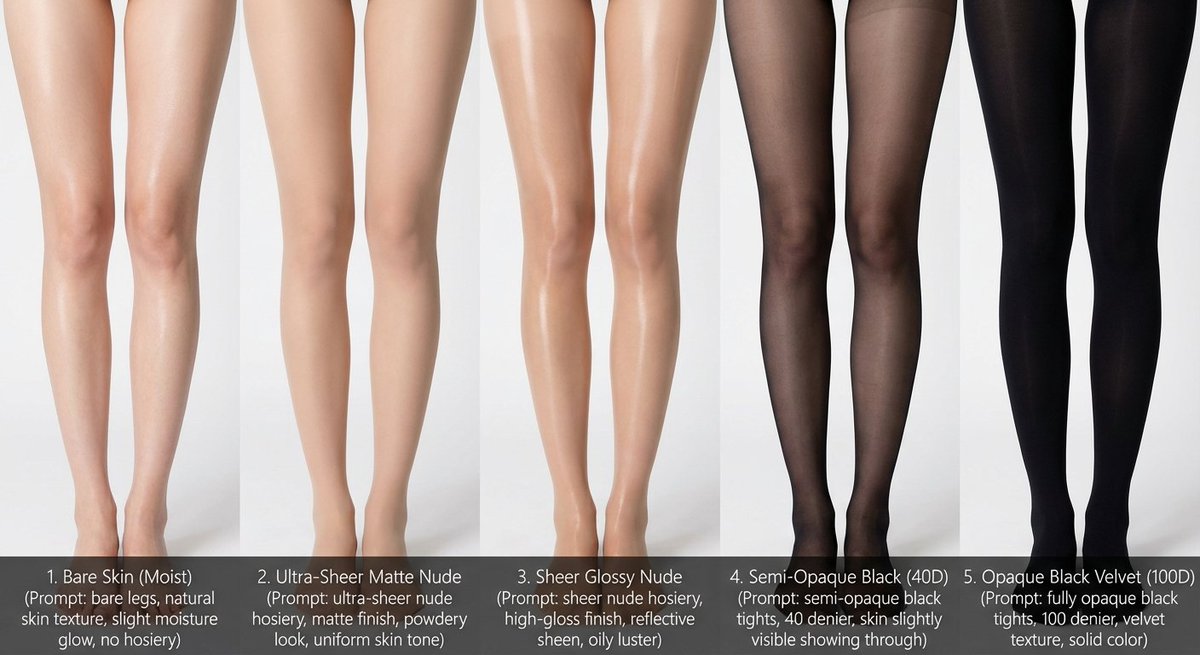
A meta-prompt template for Nano Banana Pro designed to generate a multi-panel infographic grid for visual comparison. This specific example is set up to compare bare legs with various styles of stockings, ensuring absolute consistency in lighting, angle, and composition across all panels to isolate the variable being tested.

Prompt
# Role: Comparison Infographic Generator (Design-Centric with Toggles)

# === USER INPUT SETTINGS (FILL THESE IN) ===
# 1. Grid Size (e.g., "2x2 (4 panels)", "3x3 (9 panels)"):
{argument name="grid size" default="1x5"}

# 2. Base Subject Description (Identical base scene for all panels):
[{argument name="subject description" default="Cold white, slender, fair Asian female legs, skin delicate and smooth, without blemishes, almost invisible pores and hair follicles. Skin is not dry, slightly moist"}]

# 3. Variations Theme (What is being compared?):
{argument name="variation theme" default="Bare legs versus different stockings"}

# 4. Show Text Overlay at Bottom (Yes/No):
YES

# ===========================================

# Task Description:
Generate a multi-panel infographic grid chart for a comparative visual study based on the User Input Settings above. The goal is to showcase different textural or stylistic variations (defined in the data list below) applied to the identical Base Subject defined above.

# Global Constraints & Style:
1.  **Layout:** A **[Insert setting from "1. Grid Size" here]** infographic grid chart.
2.  **Consistency is Key:** The Base Subject, camera angle, composition, and lighting must remain absolutely identical across ALL panels to emphasize only the specific variations.
3.  **Photography Style:** Clean, controlled studio photography with neutral, even lighting designed to highlight texture differences.

# Text Overlay Display Logic (CONDITIONAL):
(AI Instructions: First, check the value of User Input Setting "# 4. Show Text Overlay at Bottom". You MUST execute ONLY ONE of the following logic blocks based on that value.)

##### ➤ LOGIC PATH A: IF Setting #4 is "Yes" (Show Overlay)
If the user selected "Yes", EVERY panel must feature a precisely designed text overlay at the bottom following these strict rules:
* **Background:** A clean, sharply defined solid rectangular color block (e.g., charcoal grey or black) spanning the entire width of the panel's bottom section.
* **Typography:** Inside this block, the text must be rendered in an **elegant, ultra-thin, minimalist sans-serif font**.
* **Layout:** The text "[Number]. [Short Title] (Prompt: [Key English Prompt Snippet])" must be perfectly centered within the color block.
* **Aesthetic:** The overall effect should be that of professional, minimalist graphic design, with crisp lines and perfect alignment.

##### ➤ LOGIC PATH B: IF Setting #4 is "No" (Hide Overlay)
If the user selected "No", apply this CRITICAL rule:
* **CRITICAL:** DO NOT add any text overlay, numbers, titles, background color blocks, or prompt snippets to the images.
* **Result:** The bottom of every panel must be clean image data only, showing the subject fully without obstruction.

# Base Subject Definition:
The base scene for every panel is: **[Insert description from "2. Base Subject Description" here]**. The variations below will modify the surface or appearance of this base subject.

# Variations Data List (Apply sequentially to the grid):
(AI instructions: Iterate through t

Author
Community
Published
Aug 26, 2026
Use cases
Infographic / EducationProduct marketing

More prompts like this

Clean Whiteboard Animation Illustration

Clean Whiteboard Animation Illustration

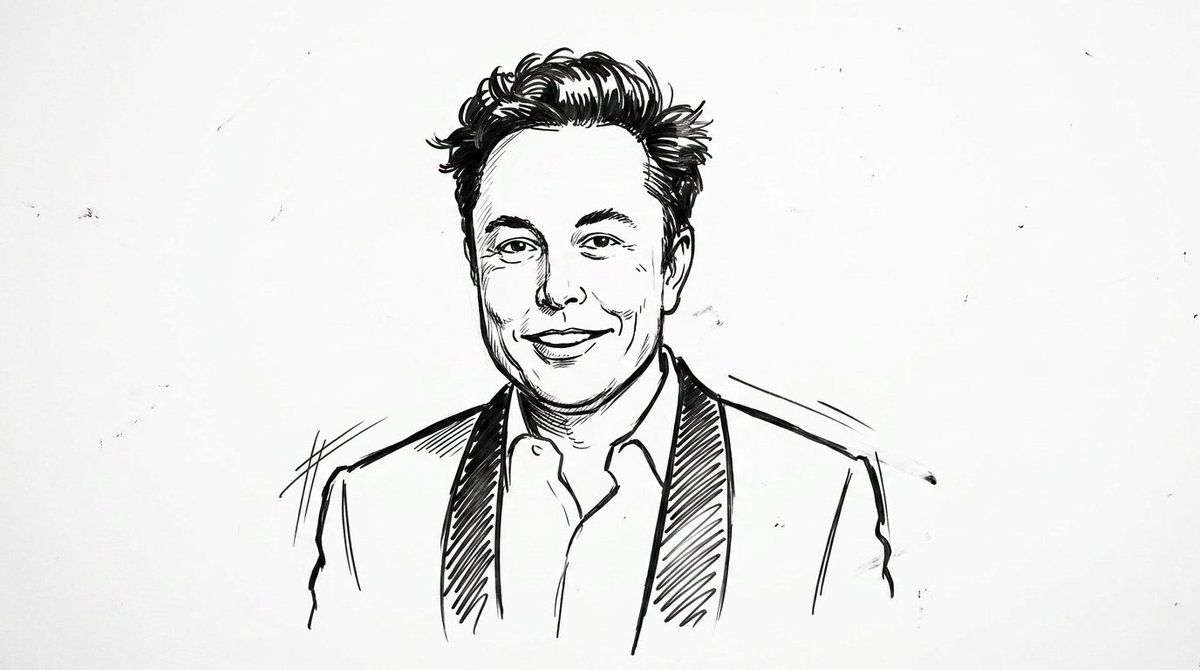
clean {argument name="style" default="whiteboard animation style"} illustration of the person from the reference image, drawn as a simple {argument name="medium" default="black marker sketch"} on a pure white background. Use bold hand-drawn outlines, minimal shading, and a slightly exaggerated cartoon-like style while still preserving the person’s recognizable facial features, hairstyle, and expression. Add subtle motion lines and sketch imperfections to mimic real hand-drawn animation. The character should appear as if being drawn on a whiteboard, with a casual, engaging, and educational vibe. Keep the composition minimal, high contrast, and visually clear, with no complex background elements

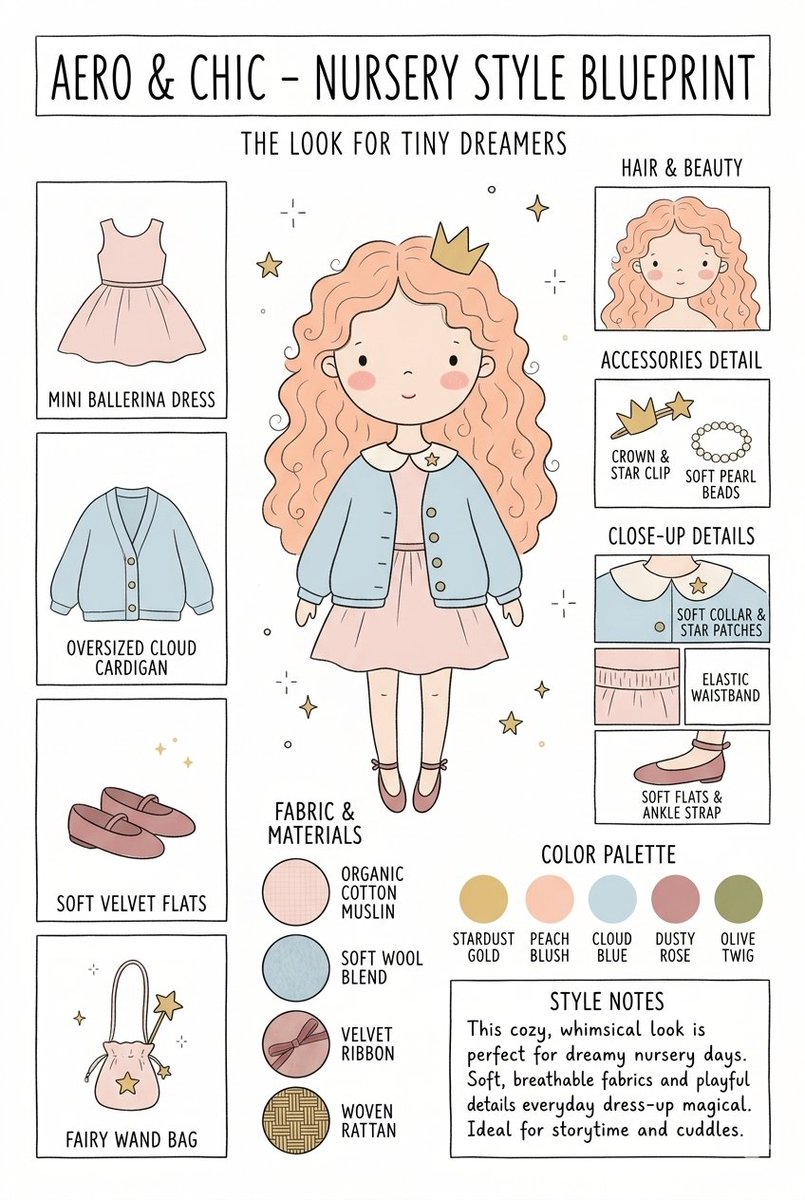
Nursery Fashion Style Blueprint Infographic

Nursery Fashion Style Blueprint Infographic

Create a matching pair of "{argument name="title" default="Aero & Chic - Nursery Style Blueprint"}" infographic concept posters, each featuring a full-body cartoon child in a curated outfit surrounded by illustrated fashion breakdowns. The first poster, titled "The Look for Tiny Dreamers," showcases a whimsical style with a girl wearing a {argument name="outfit 1" default="peach ballerina dress"} under an oversized cloud blue cardigan, complete with soft velvet flats, a crown clip, and a fairy wand bag, using a pastel color palette (stardust gold, peach blush, cloud blue, dusty rose, and olive twig). The second poster, titled "The Look for Tiny Artists," showcases a creative, functional style with a boy wearing a {argument name="outfit 2" default="splattered mustard paint smock"} over a striped studio shirt and green trousers, paired with leather ankle boots and a cat canvas tote bag, utilizing an earthy color palette (forest green, mushroom brown, slate blue, cream beige, and rust orange). Both posters must feature identical structural layouts, including side panels for clothing items, close-up details, accessories like beads, fabric swatches (such as organic cotton and wool blends), a color palette row, and a "Style Notes" text box at the bottom.

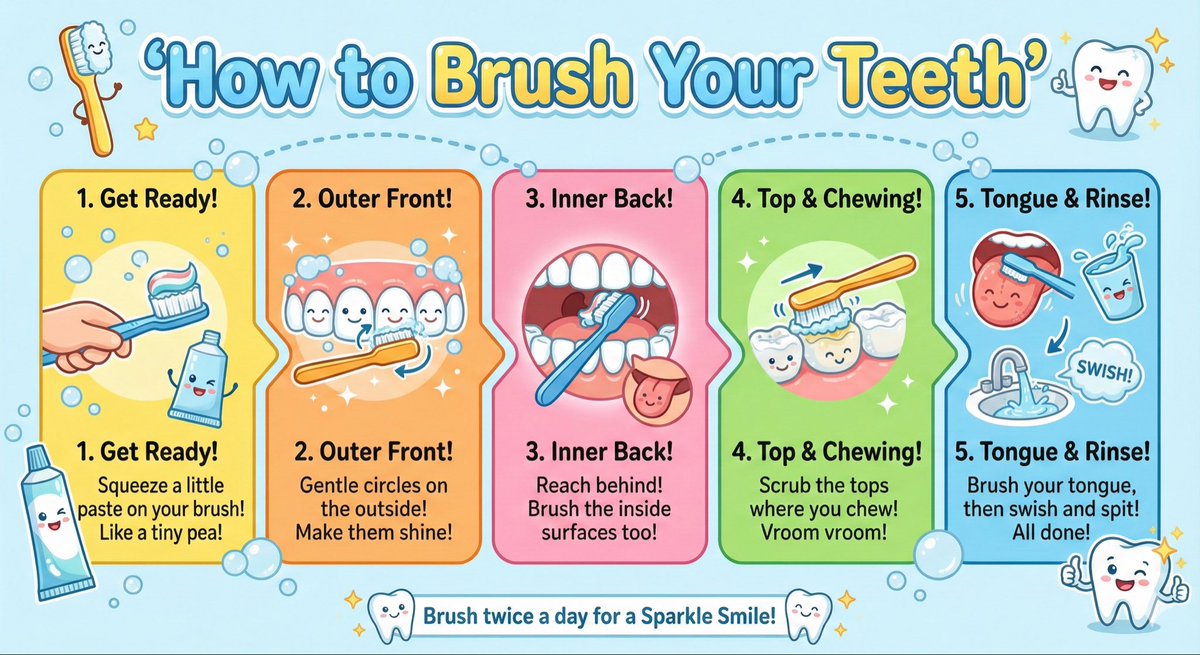
Kid-Friendly Routine Poster Prompt

Kid-Friendly Routine Poster Prompt

Create a kid-friendly ‘How to Brush Your Teeth’ poster with cartoon teeth, simple steps, bright colors, and big illustrations.

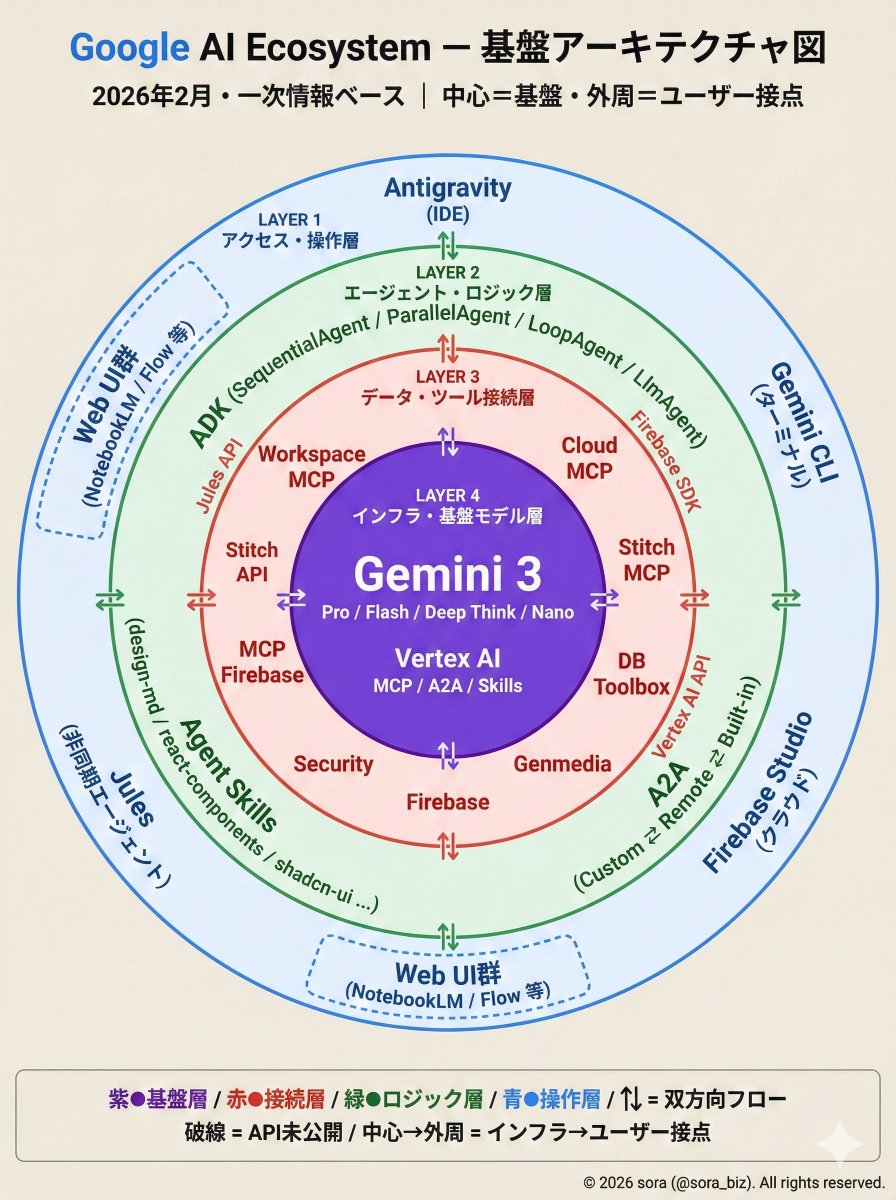
Google AI Ecosystem Diagram Generation

Google AI Ecosystem Diagram Generation

The Google AI ecosystem is organized into a four-layer structure based on primary information. There is a whole picture that cannot be seen from the tools alone. How MCP, ADK, and Antigravity connect around Gemini.

Technical Infographic Overlay on a Laptop Image

Technical Infographic Overlay on a Laptop Image

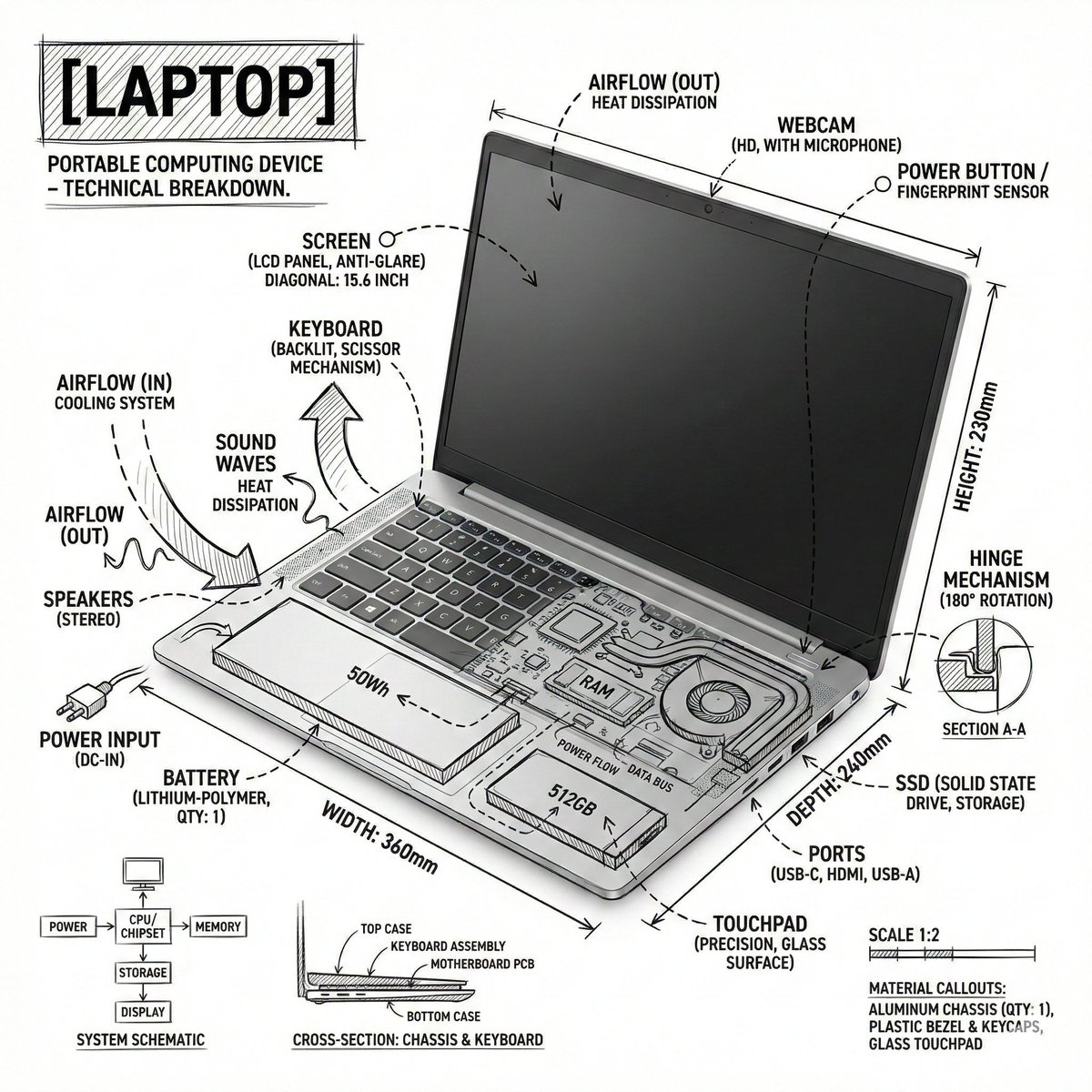
Create an infographic image of {argument name="object" default="laptop"} ,combining a realistic photograph or photoreal render of the object with technical annotation overlays placed directly on top. Use black ink–style line drawings and text (technical pen / architectural sketch look) on a pure white studio background, including: •Key component labels •Internal cutaway or exploded-view outlines •Measurements, dimensions, and scale markers •Material callouts and quantities •Arrows indicating function, force, or flow (air, sound, power, pressure) •Simple schematic or sectional diagrams where relevant Place the title [OBJECT] inside a hand-drawn technical annotation box in one corner. Style & layout rules: •The real object remains clearly visible beneath the annotations •Annotations feel sketched, technical, and architectural •Clean composition with balanced negative space •Educational, museum-exhibit / engineering-manual vibe Visual style: Minimal technical illustration aesthetic, black linework over realistic imagery, precise but slightly hand-drawn feel. Color palette: White background, black annotation lines and text only. No colors. Output: 1080×1080, ultra-crisp, social-feed optimized, no watermark.”

Some prompts are collected from creators on X. Copyright belongs to the original authors.