
Open the AI Life 4 Cuts workspace and review the source requirements before uploading.
AI Life 4 Cuts Ideas Worth Trying
Start AI Life 4 Cuts with a source that has one obvious focal point. Try a clean portrait, product, pet, illustration or scene that matches the effect. Change framing or mood between generations instead of crowding one request with unrelated ideas.
How to Use AI Life 4 Cuts in Kenerate AI
Choose a clear file you own or have permission to use, then confirm that the main subject is visible.
Generate, compare the result in My Creations and refine one detail at a time if another version is needed.
Why Create with AI Life 4 Cuts

A Clear Starting Point
AI Life 4 Cuts in Kenerate AI starts from a focused upload instead of a complicated editing timeline. You keep control of the subject while the effect handles the visual transformation.
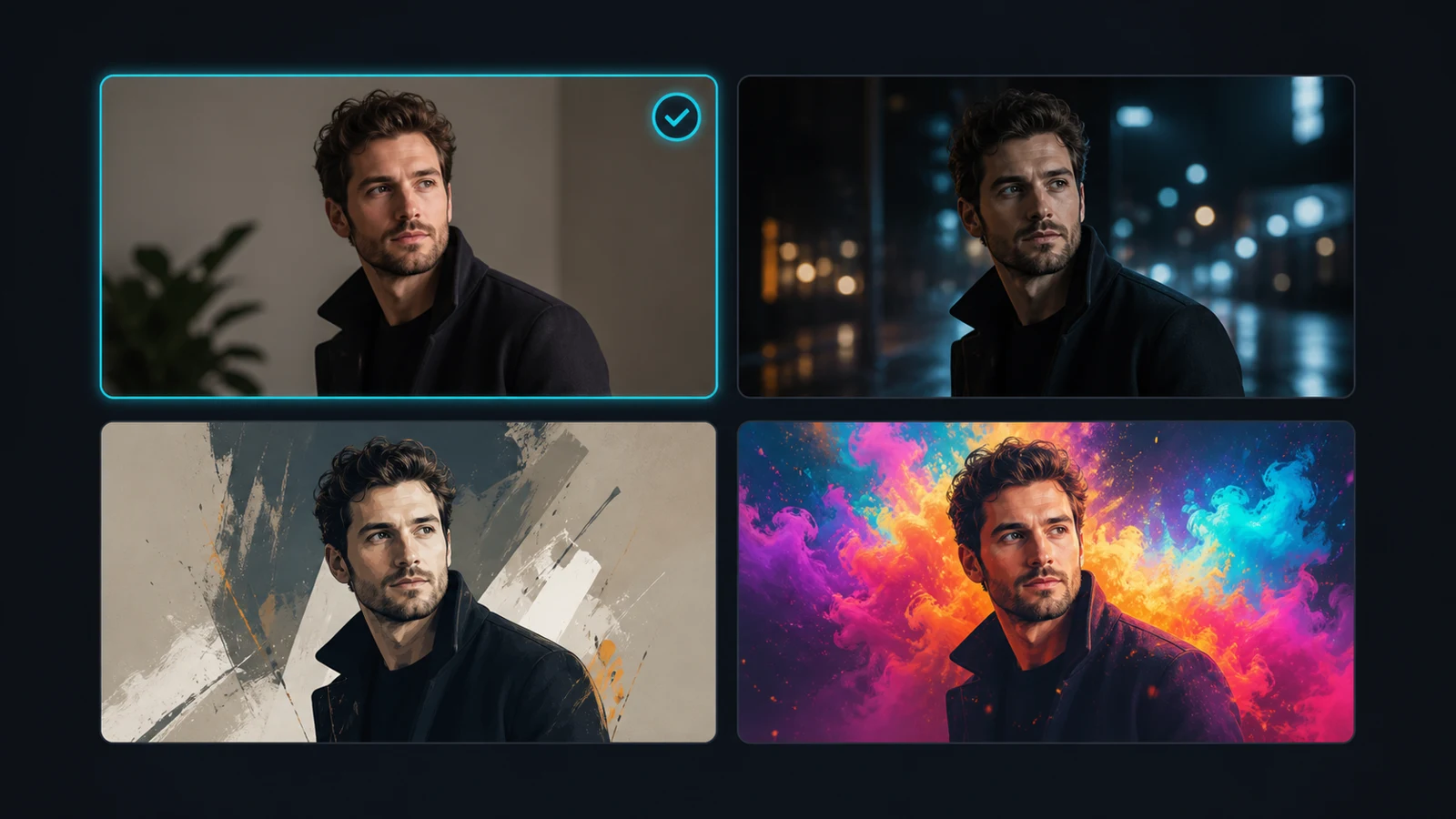
Built for Quick Iteration
Use AI Life 4 Cuts to compare several directions without rebuilding the project. Small changes to the source or prompt make it practical to test framing, mood and detail.

Results That Stay Usable
AI Life 4 Cuts prioritizes a recognizable subject, coherent lighting and a clean composition so the finished image can work in posts, concepts or personal creative projects.
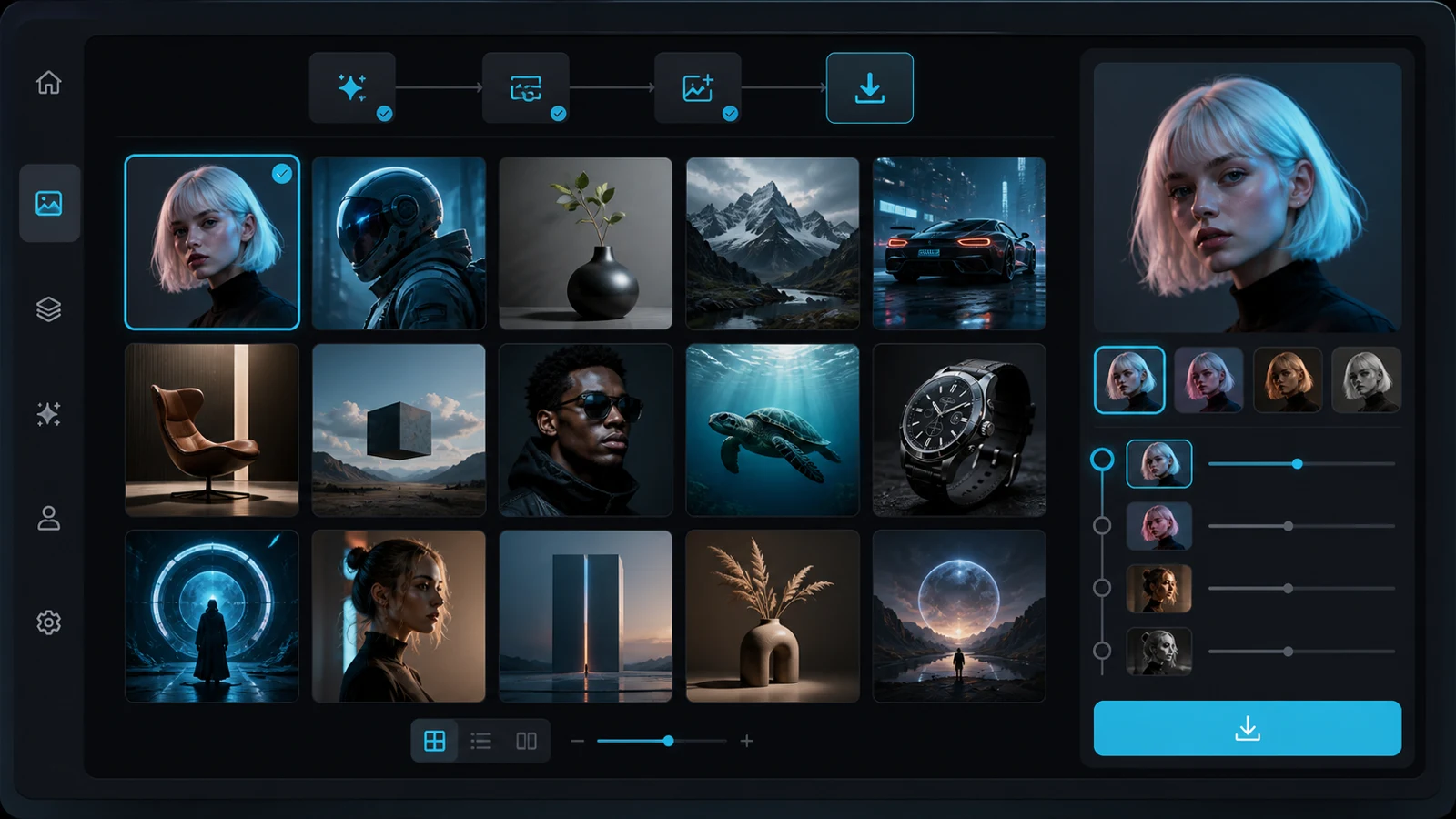
One Connected Workflow
Every AI Life 4 Cuts result stays in Kenerate AI My Creations. Review versions, download the strongest result and return to the same effect when you want another variation.
AI Life 4 Cuts FAQ
More AI Effects
AI Football Championship 2026AI Movie CameoAI GugugagaAI Aging & De-agingAI Baby DanceAI SmileAI HeavenAI Fighting VideoAI PaintingAI Palm ReadingAI Shadow CloneAI MovieAI MuscleAI Video AdsAI Anime to Real LifeAI Analog HorrorAI StoryboardAI VampireAI MermaidAI 2D to 3DAI Live PortraitAI Room DesignAI Live BaseballAI DanceAI HanfuAI Background ChangerAI Bullet TimeAI Spring PortraitsAI Photo to AnimeAI HeadshotAI HairstyleAI Action FigureAI FursonaAI Fisheye LensAI Mini MeAI Dog GeneratorAI ASMRAI Earth ZoomAI Baby
Create Stunning AI Videos
All in One Stop
Kenerate AI replaces complex tools — faster, smarter, and more affordable.